Sign-up forms
Sign-up forms are the best tool for collecting user information and obtaining opt-ins across one or more available channels.
How does it work?
Once the user fills out the form, the next step will ask them which channel they’d like to opt in to: iMessage, SMS, WhatsApp, etc. Our form automatically detects which channels need to be displayed based on the ordered options for your sender name or the user’s platform. For example, the form does not display “iMessage” if the user opens the form from Android, it will display an SMS/RCS option instead.
The opt-in process involves the user being redirected to the messaging app of their choice, where there will be a pre-filled message with a “unique code”, and then all they have to do is click the “send” button. From the user side on a mobile device, this process takes only 2 taps.
As soon as we receive a message from a user, we check the unique code in the message and determine the form data.
If you are using the API, our server sends a webhook that you receive an inbound message, and it includes form data.
Additionally, the forms feature a JavaScript API that lets you detect when a form is filled out and track this activity in your analytics.
What are the benefits of using these forms?
- No need to ask the user for a phone number in the form and verify/check it then. You receive the user’s phone number once they send a message during the opt-in process. You can be sure that this phone number is valid and active, and it couldn’t be a fake or disposable number. Otherwise, users are unable to send an opt-in message.
- You immediately obtain a guaranteed opt-in that is counted by any instant messaging platform (such as iMessage or WhatsApp). This opt-in type will cover compliance across almost all global regions where SMS opt-in regulations may vary. After all, if the user initiates the message themselves, you won’t face complaints claiming they didn’t provide consent or were the victim of a pseudo opt-in/consent*.
- You obtain the user’s filled-in details and phone number, along with an instant opt-in via the required platform.
*By pseudo opt-ins mean cases where it’s not clear to the user that they’ve given consent for something. For example, when prompted to click a “Agree for terms…” checkbox, where a bunch of text briefly mentions that you’ll be sending them texts.
How to use?
Step 1: Open the LoopMessage Dashboard
Start by signing in to your LoopMessage account and opening the dashboard. Once you are inside the dashboard, make sure you select the correct organization, and then select “Signup forms” in the left sidebar.
Step 2: Create the form
During the creation process, you will need to configure the following things:
- Form name
- Which pool should this form use
- How the form should look and which data you need to collect
Then just save the form, and it’s ready to use.
Step 3: Share the form
There are a few ways to share the form
- Share URL to this form
- Embed as an iframe on your website
Form styles
You can edit the form style. It includes the following options:
- Button and label fonts
- Text, button, and background colors
- Text in labels and buttons
Style items
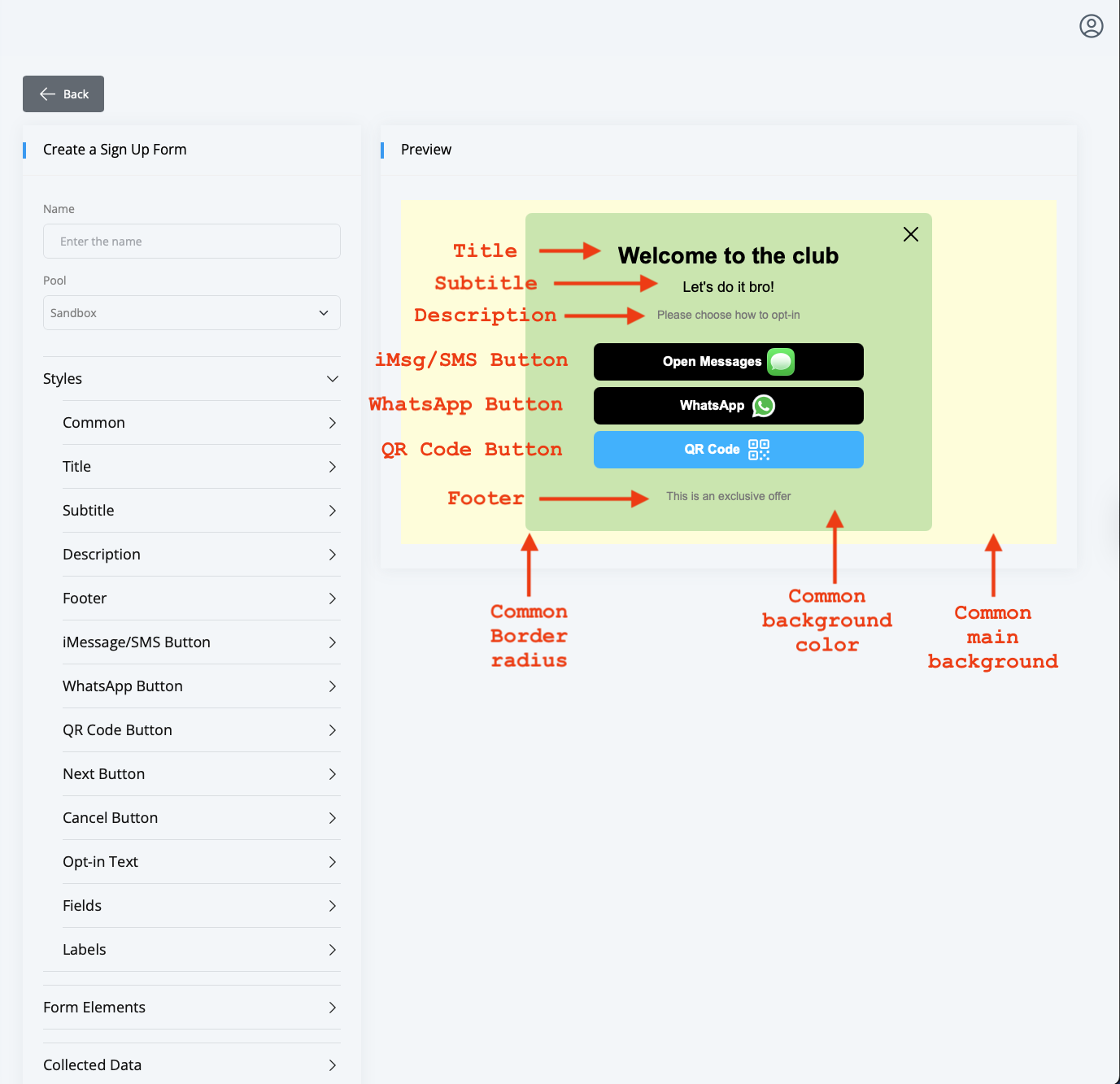
Common - general options for the form
Possible options:
- Border radius
- Background color
- Main background
Title - main text at the top of the form
Subtitle - second line after the title
Description - short description
Footer - text at the bottom of the form
Possible options:
- Text
- Font
- Text color
iMessage/SMS Button - button that redirects to the Messages app
WhatsApp - a button that redirects to WhatsApp. Presents only if WhatsApp is available for your phone numbers.
QR Code Button - presents QR codes for opt-in through a mobile device. Presents only if you open the form from the desktop.
Next Button - button that follows a user to the next form step
Cancel Button - button that moves a user to the previous step
Possible options:
- Text
- Font
- Border radius
- Text color
- Background color
Opt-in text - text that will be prefiled when a user is redirected to the destination app to send a message to your sender
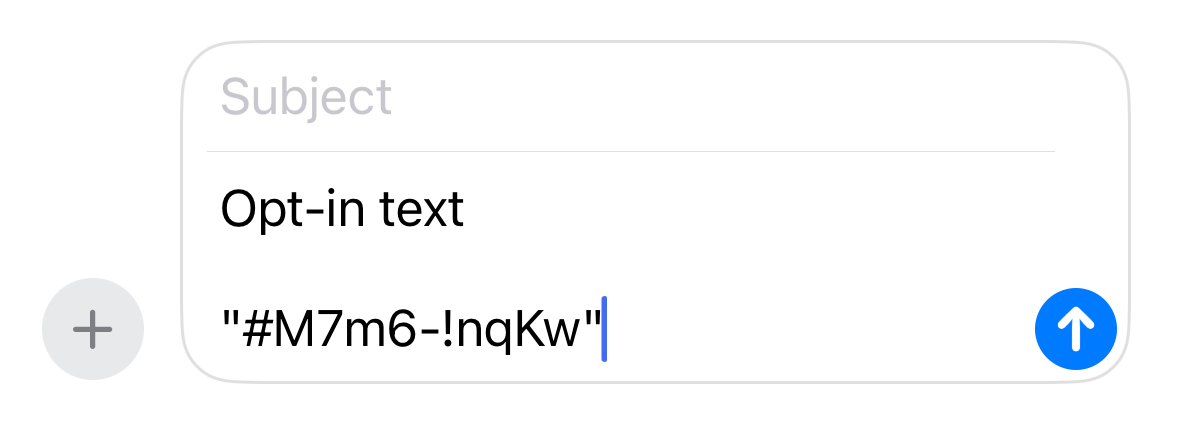
The opt-in message always includes a secret code at the end of the message. If you’d like to put the code in the middle of the sentence, you can use [opt-in-code] tag in the text. For example:
I’m in! Here is my invite code: [opt-in-code]. Let’s rock!
Fields - customize style for form fields
Label - customize style for form labels
Possible options:
- Font
- Text color
Form elements
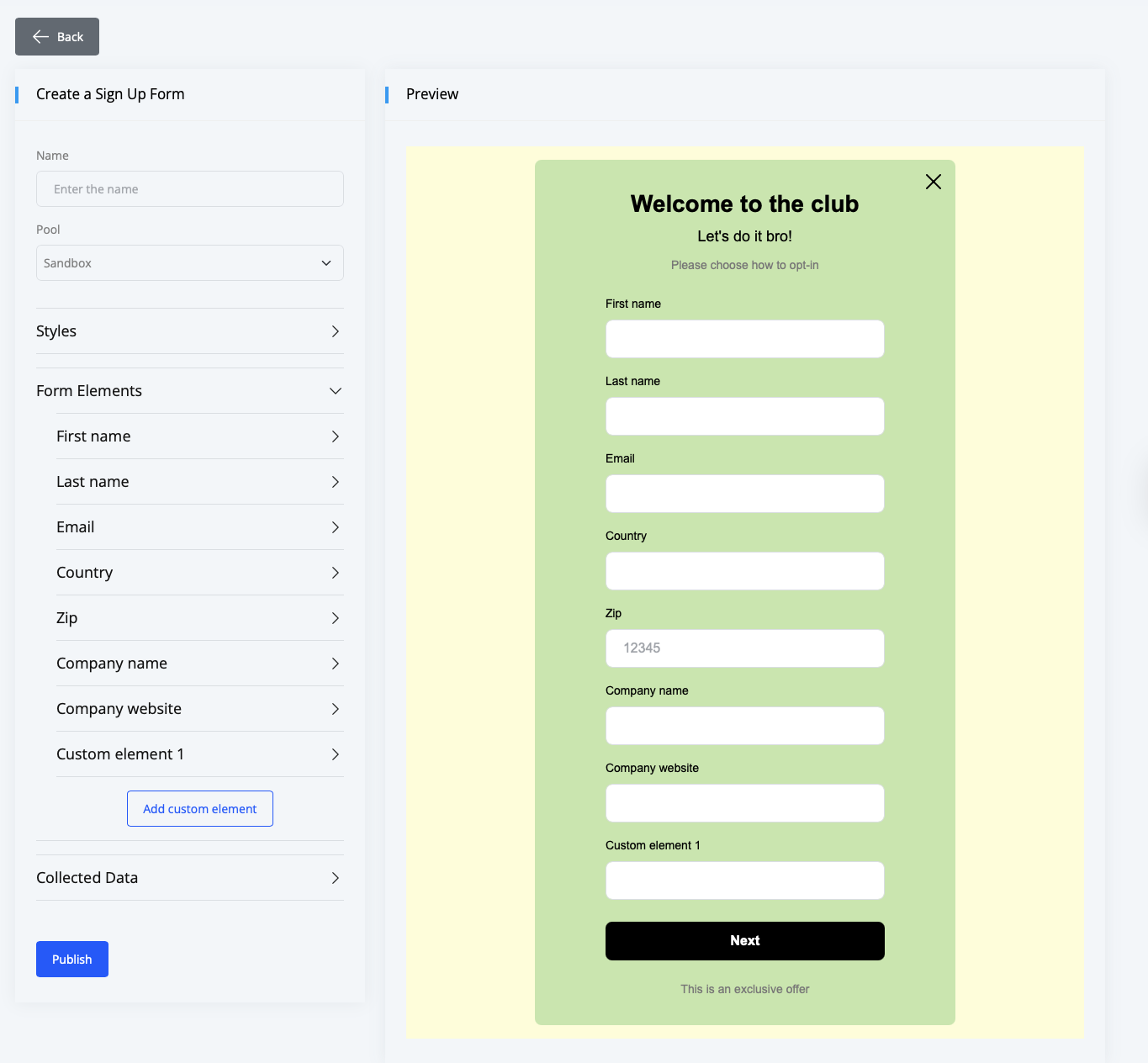
You can collect data by using default fields or customize them
- First name
- Last name
- Country
- ZIP
- Company name
- Company website
Custom fields
Custom fields designed to help you ask some custom information from your users. Use this feature if you need to ask the user for something unrelated to their personal data.
Collected Data
- Timezone - collect timezone from a user’s browser
- Country from IP - detect a user’s country according to their IP