GHL / LeadConnector
LoopMessage allows you to connect your organization with GoHighLevel so you can use the integration within a selected CRM sub-account. The setup process is simple and only takes a few steps: choose your organization in the LoopMessage dashboard, enable the GoHighLevel integration, authorize access through GoHighLevel, and select the sub-account where the integration should be used.
Supported features:
- Sandbox
- Sign-up forms
How to connect
Step 1: Open the LoopMessage Dashboard
Start by signing in to your LoopMessage account and opening the dashboard. Once you are inside the dashboard, make sure you select the correct organization. This is important because the GoHighLevel integration will be activated for the organization you choose.
Step 2: Go to the Integrations Section
After selecting your organization, open the Integrations section from the dashboard menu. In this section, you will see the available integrations for your organization. Find GoHighLevel in the list.
Step 3: Activate the GoHighLevel Integration
Next to the GoHighLevel integration, click the option to activate or connect it.
This will start the authorization process and redirect you to GoHighLevel, where you will need to approve the connection between LoopMessage and your CRM account.
Step 4: Authorize Through GoHighLevel
When the GoHighLevel authorization screen opens, sign in to your CRM account if you are not already logged in.
Review the requested permissions and confirm that you want to allow LoopMessage to connect with your GoHighLevel account.
This authorization step is required so LoopMessage can securely access the selected CRM environment and enable the integration.
Step 5: Select the GoHighLevel Sub-Account
After authorization, you will be asked to choose the GoHighLevel sub-account to use for the integration.
Select the correct sub-account from the available options. This ensures that LoopMessage is connected to the right CRM workspace and that the integration works only for the intended business or client account.
Step 6: Complete the Setup
Once the sub-account is selected, complete the setup process.
After the connection is finished, the GoHighLevel integration will be active for your selected LoopMessage organization and CRM sub-account.
Summary
To connect LoopMessage to GoHighLevel:
- Open the LoopMessage dashboard.
- Select your organization.
- Go to the Integrations section.
- Activate the GoHighLevel integration.
- Authorize the connection through GoHighLevel.
- Choose the CRM sub-account where the integration should be used.
After these steps are completed, LoopMessage will be connected to GoHighLevel and ready to use with the selected sub-account.
How to use
Conversation
Once you install the Loop Message app, you will be able to see one or a few new Conversation Providers from the following list:
- Auto channel
- iMessage
- SMS
In most cases, we recommend using the Auto channel because it can automatically detect which channel the message should be delivered to.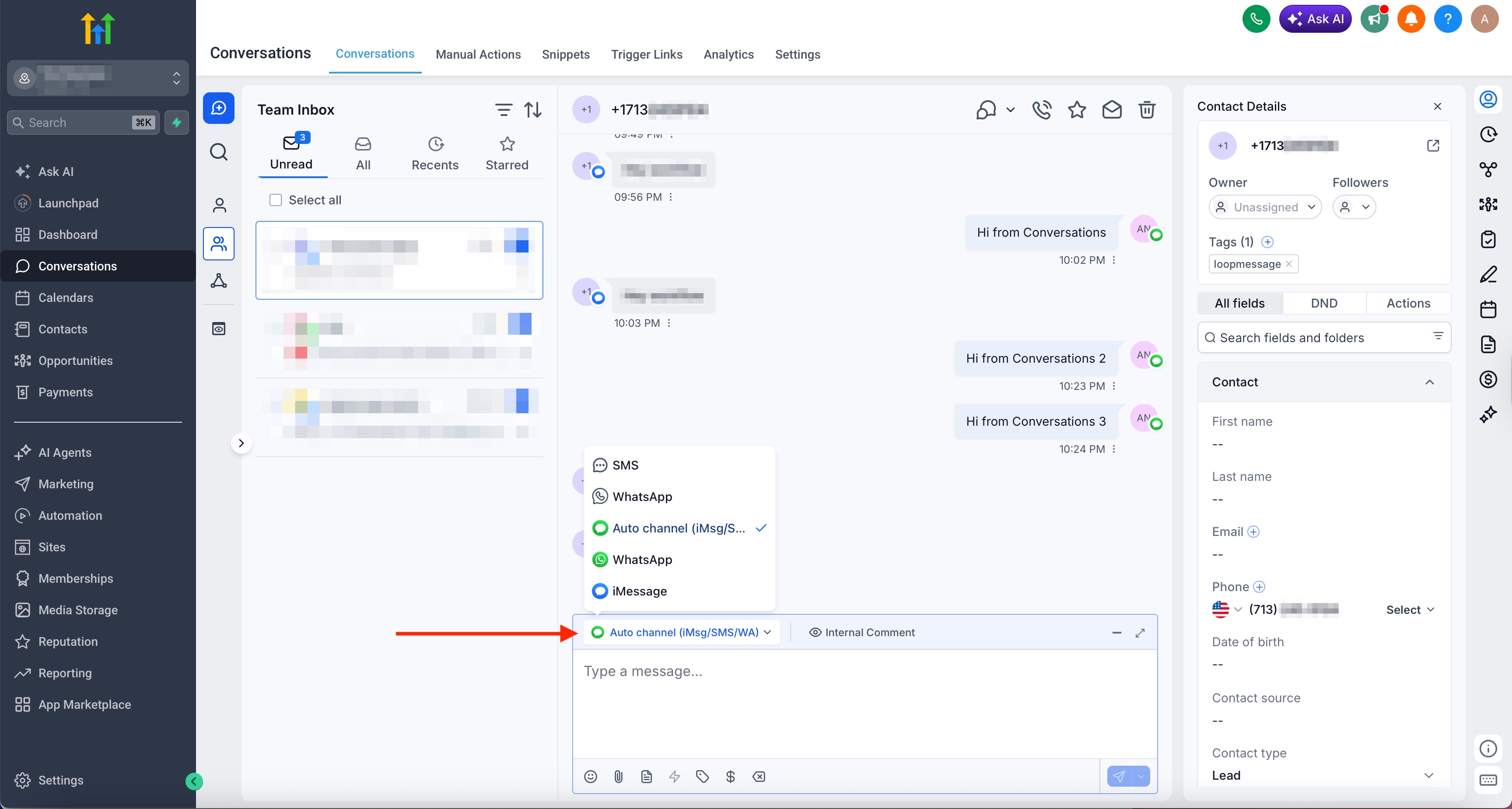
Workflows / Automation
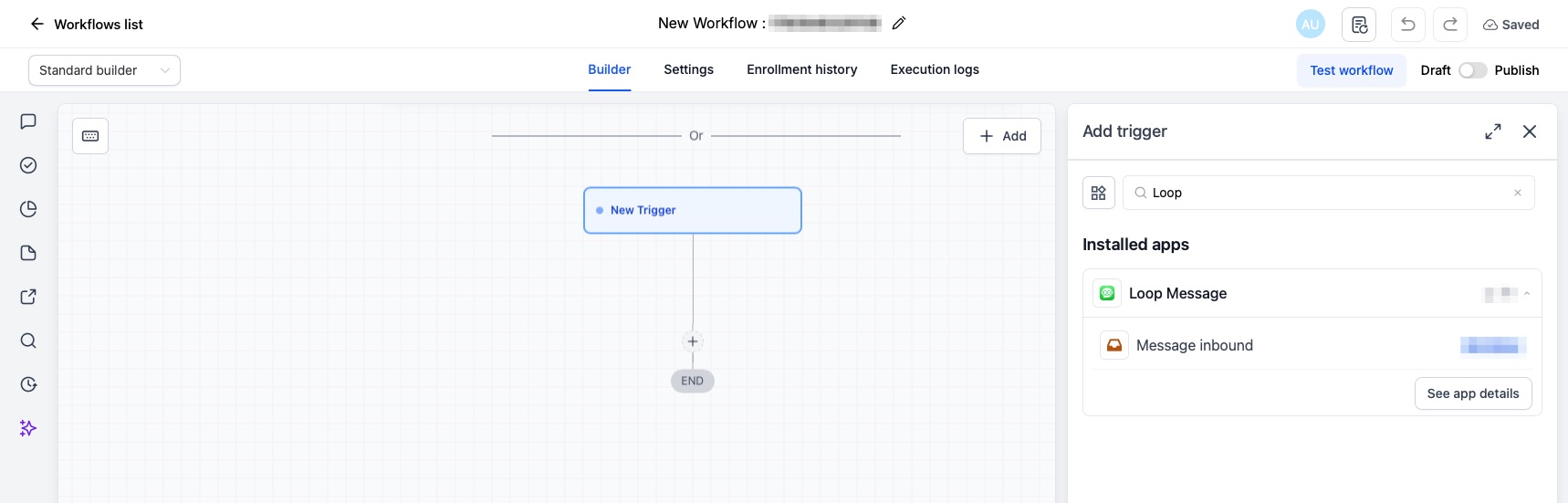
When you create a workflow, you can use LoopMessage triggers and actions. You can use triggers to understand when you receive an inbound message. Actions needed to make any outbound sendings.
- Need to find the Loop Message in the triggers list, and select Message inbound.
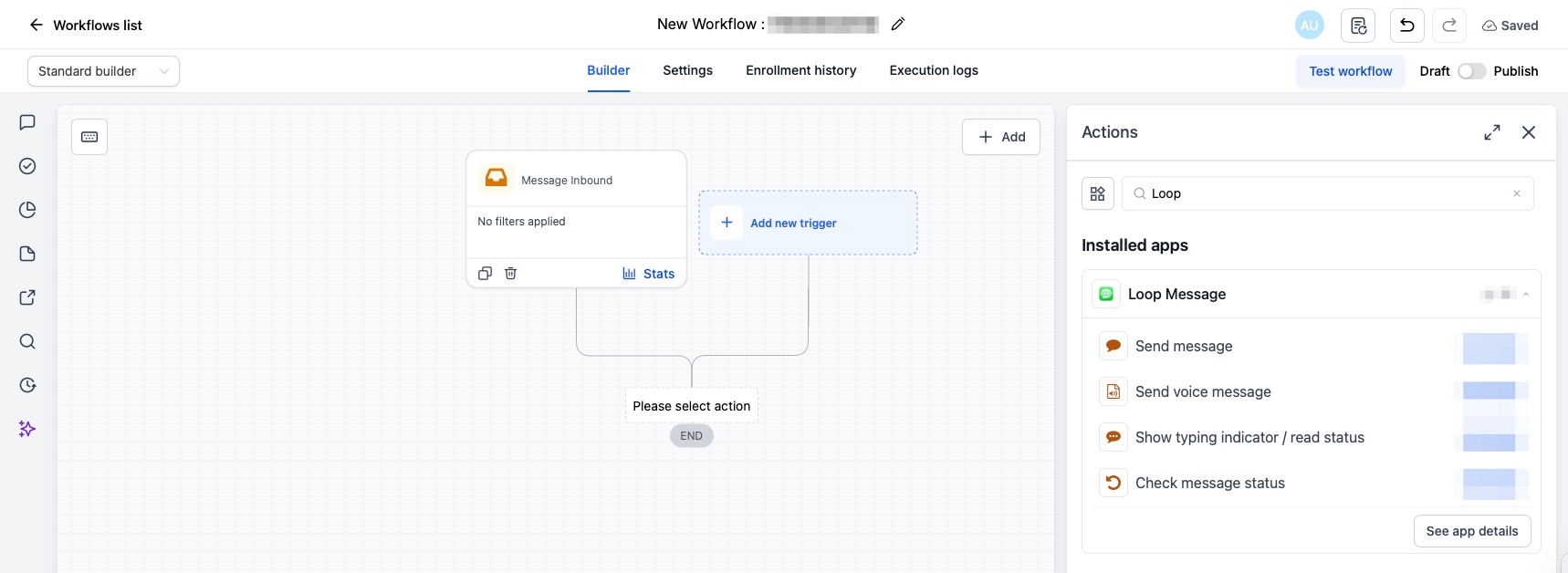
- Then need to add an action: Send message.
- In the action settings, you need to set
{{loop_message_inbound.contact}}as a contact and fill out the text that you’d like to send.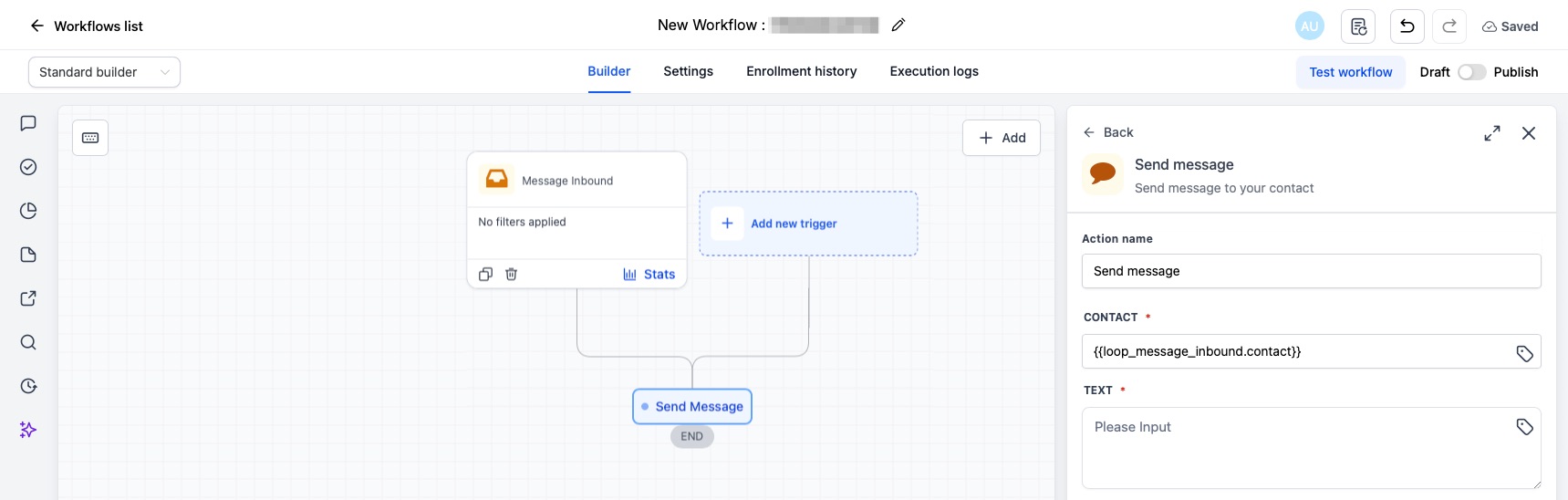
All possible actions:
- Send message - send regular text message or attachments;
- Send voice message - send voice memo/audio message;
- Show typing indicator/read status - present typing indicator or/and mark inbound messages as read;
- Check message status - check whether the outbound message was delivered/read or not;
- Wait for Reply - this action allows you to put your workflow in a standby state while you await a response from a contact. You can specify the expected timeframe for the response and execute a different action depending on whether or not a response is received.
Common Issues
- You are trying to install Loop Message integration from the GHL/LC marketplace instead of the Loop Message Dashboard. This is necessary to determine which Loop Message organization to connect to your specific sub-account.
- You are trying to send another channel like SMS or WhatsApp, but your sender doesn’t have such an active option. In that case, your sending might fail.