Embed Inbox
LoopMessage Inbox is a ready-to-use messaging interface. It lets your users send and receive messages directly in your product, without requiring you to build a messaging UI or connect to the LoopMessage API for every interaction.
You can use Inbox as a standalone feature in your product or embed it as an iframe on any page of your website or application.
Supported functionality
Inbox supports:
- 1:1 conversations;
- group conversations;
- file attachments;
- iMessage effects;
- message reactions;
- message threads.
How to enable Inbox
Inbox is configured separately for each organization.
Step 1: Open Embedded settings
Sign in to the LoopMessage Dashboard, select the organization that should use Inbox, and open:
Preferences → Embedded settings
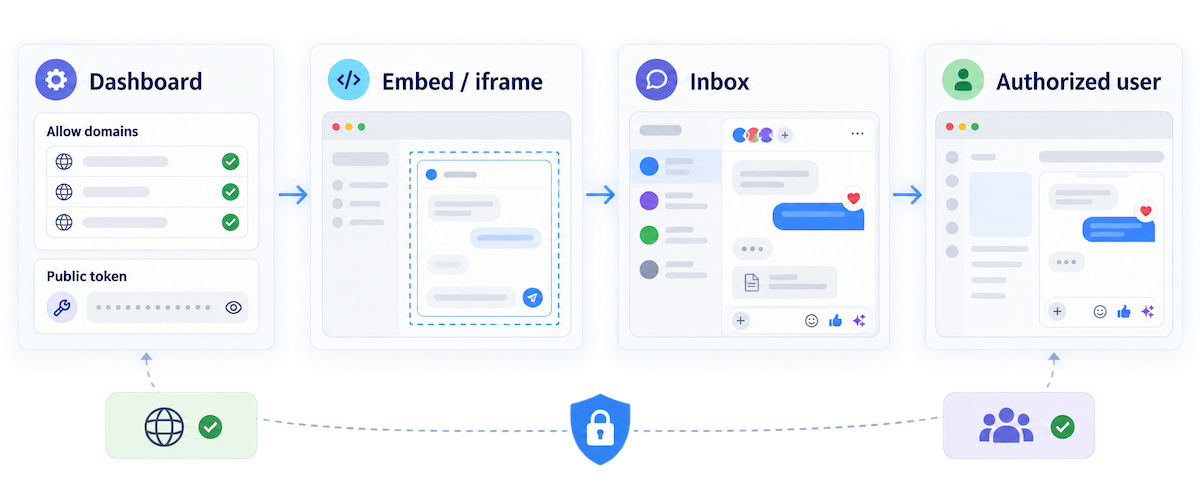
Step 2: Allow your domain
In Allow domains, add the domain where the Inbox UI will be embedded. Use the domain of the page that will contain the iframe.
For example:
https://app.example.comOnly embed Inbox on domains that you have explicitly added to this list. If you use Inbox on more than one domain, add each domain separately.
Step 3: Copy the embed URL
After the domain is saved, copy the URL shown in the Embed code section. The URL contains the public token associated with your embedded Inbox.
Keep the complete URL unchanged when adding it to your application.
Embed Inbox in your application
The simplest option is an HTML iframe:
<iframe
  src="YOUR_EMBED_URL"
  title="Inbox"
  width="100%"
  height="720"
  style="border: 0; border-radius: 12px;"
  loading="lazy"
  allow="clipboard-read; clipboard-write"
></iframe>
Replace YOUR_EMBED_URL with the complete embed URL copied from Preferences → Embedded settings. Do not modify or remove the query parameters generated by the Dashboard.
React example
export function Inbox() {
  return (
    <iframe
      src="YOUR_EMBED_URL"
      title="Inbox"
      style={{
        width: '100%',
        height: 720,
        border: 0,
        borderRadius: 12,
      }}
      allow="clipboard-read; clipboard-write"
    />
  );
}
Vue example
<template>
  <iframe
    src="YOUR_EMBED_URL"
    title="Inbox"
    style="width: 100%; height: 720px; border: 0; border-radius: 12px"
    allow="clipboard-read; clipboard-write"
  />
</template>
Security and access
Inbox is intended to be integrated as a feature for users who should have access to the relevant conversations. Do not publish the Inbox URL as a public, unrestricted UI element or expose it to users who should not be able to view or send messages.
Access to an embedded Inbox is protected by two things:
- The public token included in the embed URL.
- The domain allowlist configured in Preferences → Embedded settings.
The token is public by design because it is used by the browser to load the embedded UI. Nevertheless, treat the complete embed URL as a credential for your embedded Inbox and do not place it in public documentation, source code repositories, or pages available to unauthorized users.
If the public token is exposed, reset it in the LoopMessage Dashboard. Resetting the token invalidates the previous URL. After a reset, copy the new embed URL from Embedded settings and update every integration that uses the old URL.
The domain allowlist is an additional protection layer, not a replacement for application-level access control. Your application should decide which users can open the page containing the Inbox iframe.
Recommended integration pattern
Render the iframe only after your application has authenticated the user and confirmed that they have access to messaging. For example:
export function SupportInbox({ canUseInbox }) {
  if (!canUseInbox) {
    return null;
  }

  return (
    <iframe
      src={process.env.REACT_APP_LOOPMESSAGE_INBOX_URL}
      title="Inbox"
      width="100%"
      height="720"
      style={{ border: 0 }}
    />
  );
}
Store the embed URL in your application configuration rather than hard-coding it in multiple components. If you reset the public token, replace this configuration value with the newly generated URL.
Troubleshooting
The iframe does not load.
Check that the page’s origin is present in Allow domains, that the embed URL is copied completely, and that the public token has not been reset.
The iframe worked before but stopped working after a token reset.
Resetting the public token invalidates the old URL. Copy the new URL from Preferences → Embedded settings and update your application.
Users can access the page but should not see Inbox.
Add application-level authorization before rendering the iframe. The embedded UI should be available only to users who are allowed to read and send the relevant conversations.
API availability
Inbox is a UI integration. You do not need to call the Conversation API to display the embedded UI or to send and receive messages from it.
Use the Conversation API separately when your backend needs programmatic access, automation, webhooks, or message processing outside the Inbox UI.