Deferred messages
Deferred messages help you automatically comply with message-sending interval limits without building a custom queue or scheduling system in your backend or CRM.
When you frequently initiate new conversations or send daily/weekly follow-up messages, you will easily reach an interval for such types of messages. Normally, such a request returns a failed response and asks you to keep an interval between sending.
When Deferred messages are enabled, LoopMessage places the message in a queue instead. The message is marked as Deferred, and our system automatically calculates when it can be sent according to the applicable sending intervals and limits.
You can review the applicable intervals and other requirements in the message-sending limits documentation.
Deferred messages do not bypass or reduce your sending limits. The feature automatically applies the required intervals for you.
How does it work?
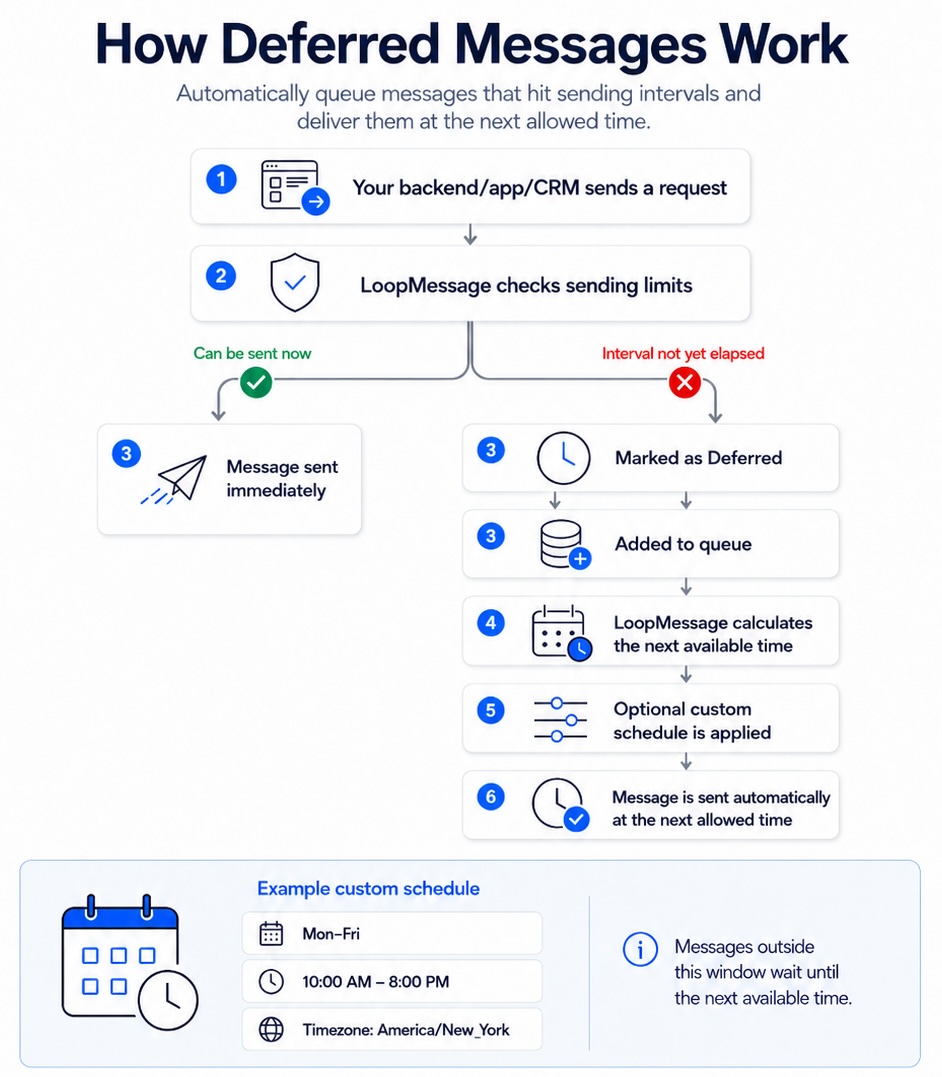
When LoopMessage receives a message-sending request:
- Your app, backend, crm sends a request.
- We check whether the message can be sent immediately according to the applicable interval limits.
- If the message is eligible for immediate sending, it is processed normally.
- If the required interval has not yet elapsed, the message is added to the queue and marked as Deferred instead of returning an interval-related error.
- Our system schedules the next available sending time.
- The message is automatically sent once the applicable interval and optional custom schedule allow it.
This makes it possible to submit multiple messages from your application or CRM without calculating the delay between every request.
When should I use Deferred messages?
This feature is especially useful when you:
- Frequently use Init conversation;
- Your use case requires sending daily/weekly follow-up messages, or you sometimes need to ping your users;
- Submit batches of messages from a CRM or another integration;
- Do not want to maintain queues, timers, cron jobs, or schedulers in your own infrastructure;
How to enable Deferred messages
Deferred messages are configured separately for each organization and are disabled by default.
Step 1: Select your organization
Sign in to the LoopMessage Dashboard and select the organization for which you want to configure deferred sending.
Settings enabled for one organization do not automatically apply to your other organizations.
Step 2: Open Deferred Messages settings
In the left sidebar, navigate to:
Preferences → Deferred Messages
Click Edit to modify the settings.
Step 3: Enable scheduled sending
Turn on Enable scheduled sending.
Once enabled, messages that cannot be sent immediately because of interval limits will be placed in the deferred queue and processed automatically.
Step 4: Configure an optional custom schedule
Turn on Use custom schedule when deferred messages should only be sent during specific days or hours.
You can configure:
- Weekdays — the days on which deferred messages may be sent;
- From time — the beginning of the allowed sending window;
- To time — the end of the allowed sending window;
- Timezone — the timezone used to evaluate the selected days and hours.
If a deferred message becomes eligible outside the allowed window, it will remain in the queue and will be sent during the next available sending window.
Custom schedule example
Suppose you submit 100 messages for new contacts and the applicable interval is 15 minutes between messages.
You do not want recipients to receive messages during the night, so you configure the following schedule:
- Weekdays: Monday through Friday;
- From time: 10:00 AM;
- To time: 8:00 PM;
- Timezone: America/New_York.
Our scheduler will automatically space the messages according to the required interval and send them only during the configured hours.
When the allowed window ends, the remaining messages stay deferred. Sending resumes during the next available window - for example, at 10:00 AM on the following configured weekday.
This allows your application or CRM to submit the messages without calculating individual sending times or maintaining its own scheduling infrastructure.
Important considerations
- Deferred messages must be enabled separately for every organization.
- The feature is disabled by default.
- Enabling the feature does not modify any other limits that may be assigned to your sender names.
- Messages are sent only after both the required interval and the custom schedule conditions have been satisfied.
- Without a custom schedule, deferred messages are sent at the next available time permitted by the applicable interval.
- The maximum number of deferred requests is 100.